Contact Form

Name

Email *

Message *

Drop Dropbox: Here are some alternatives

Have you heard of the Drop Dropbox initiative? Apparently, the Dropbox Board of Directors have appointed Condoleeza Rice as a member of the Dropbox management. Formerly holding the position of a Provost of Stanford University, board member of companies like Hewlett Packard and Charles Schwab, and former United States Secretary of State, Condoleeza Rice is now holding an undeserved position at the Dropbox Board of Directors. Why undeserved, you may ask? Because state authorities should not have the right to interfere with companies, dealing with digital privacy, such as file storage platforms, keeping our data. If the state shall have the right to put a hand on our data, things become quite unpleasant. The participation of Dr. Condoleeza Rice in the Dropbox management is deeply disturbing, especially for those who value ethics. This selection is problematic on a number of levels, and questions the commitment of Dropbox to freedom of data possession, openness, and human ethics, since this company literally has access to all of its user's data.
The position of a Secretary of State that Conduleeza Rice held during the President Bush's mandate, makes her one of the chief architects of the Iraq War. Also, she was one of those who justified the use of “enhanced interrogation techniques” (forms of torture) as a US national security adviser. All of the aforementioned, mostly for political reasons, undermines the confidence that Dropbox will keep its users' data secure, and fight to keep it that way.
As the Dropbox announcement goes: “There’s nothing more important to us than keeping your stuff safe and secure. It’s why we’ve been fighting for transparency and government surveillance reform, and why we’ve been vocal and public with our principles and values. We should have been clearer that none of this is going to change with Dr. Rice’s appointment to our Board.”
Unfortunately, the Dropbox users have difficulties believing the aforementioned statement. That is why, I would like to focus your attention to other cloud storage systems, provided by other companies, uninvolved with politics.
Here is our selection of some of the best cloud storage services, available on the market.
bitcasa cloud storage

Bitcasa is your external hard drive in the cloud. This file storage system allows you to drag and drop files and folders just like any external hard drive. The documents you've placed on this virtual drive won't take space on your computer and will be accessible from any other devices you use. All you need to do is install the desktop application, which creates a virtual drive on your computer. It effortlessly backups and mirrors your files and you can access them from all your computers and mobile devices, anywhere.

The platform allows you to share files and folders instantly with other users. It provides secure cloud storage by encrypting your files before they are even uploaded. This way you can safely backup all your digital belongings and access them via Windows, Mac and Linux, as well as any mobile device. You can access your files even offline.
Unlike other file sharing services, Bitcasa allows you to view or stream any type of file without additional software required.
The Bitcasa virtual drive works and looks just like any standard hard drive, except it does not run out of space. (In case you've ordered a paid version). Bitcasa helps you save valuable space on your non-virtual drives.
The cloud storage system automatically backups your files even on mobile. You just need to download and install the Bitcasa application for iPad, iPhone or Android. 

The plans that Bitcasa offers are, as follows:
Free – Up to 20 GB storage space
Premium – 1 TB storage space – 10$/month – Up to 5 devices
Pro – 5 TB storage space – 49$/month – Up to 5 devices
Infinite – Unlimited storage space – 99$/month – Up to 5 devices 


Mega cloud storage

The Mega online cloud storage platform provides the generous 50GB free storage space. It offers a cloud-based data backup service for your documents and files, which can be accessed through any device connected to the internet.
Once registered to the Mega, you can start uploading files or folders, as well as simultaneously download data from the web platform. Mega can integrate with your desktop computer system if you download and install the MegaSync application. Mega is also available for mobiles, such as iPhone and Android devices.
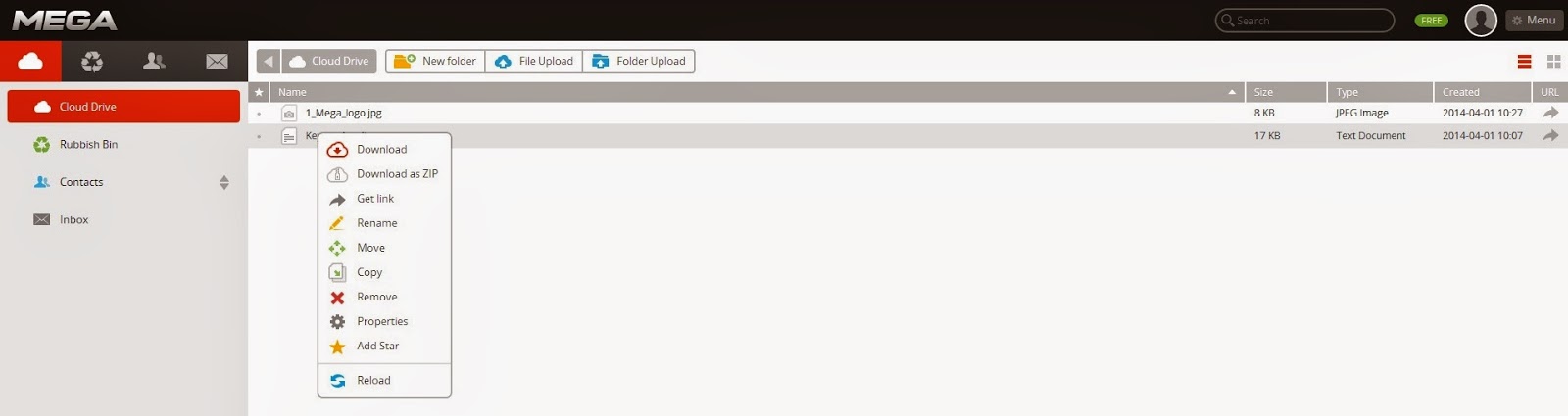
Once you have uploaded a file, you can right-click on it and make use of the additional features the online file storage platform provides. 

Pcloud cloud storage

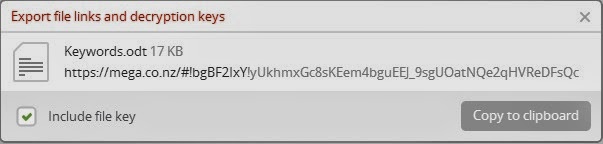
Upon sharing your files, you can set authorization rights to the users – whether you will provide them with read only or full access. Since the files you upload to the platform become encrypted in the process of uploading, the users shall also receive a decryption code that is shared along with the URL to the file. Using this, your collaborators can freely download and use the files they are provided access to. As you can conclude, Mega is mostly dedicated to privacy.
Unlike other cloud services, Mega supports unlimited size of the files you upload. This way it ensures large file transfer at reasonable upload and download speeds.
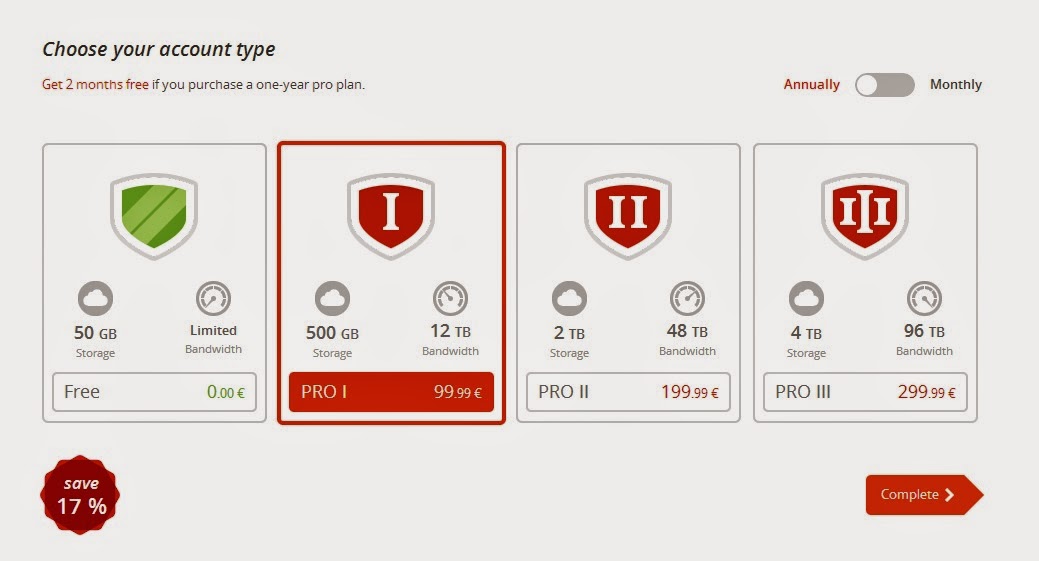
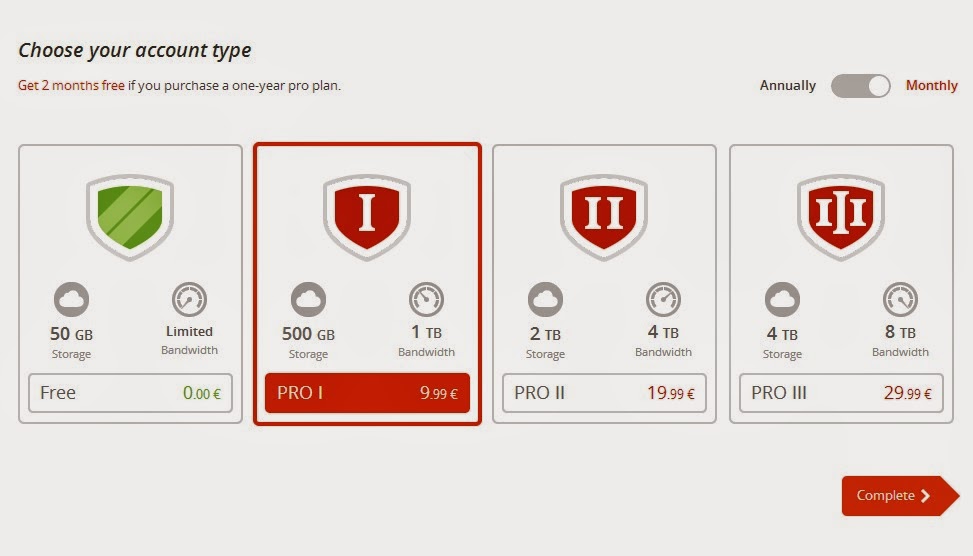
In terms of the plans offered, Mega has the following options for you: 


These prices make Mega the cheapest cloud storage service on the market. 


pCloud is a relatively new cloud storage service, which is developing in very impressive speeds. With up to 20GB free storage space at sign up, this online cloud platform will be very helpful for your everyday needs. Businesses can benefit from it by upgrading to 100GB, 300GB or 1TB online storage space for any types of documents and files. pCloud is a secure space where you can store all of your audios, photos, videos, etc. and any other valuable digital belongings. 


This online storage platform provides you with the opportunity to share and store your files without bothering about any speed or size issues. Your data is available on any of your devices, wherever you go, anytime. The cloud service is available for web and any desktop and mobile devices.
If you download the pCloud application for desktop or mobile, it provides you with a virtual drive, where you can store and automatically sync your files with your online account. Synchronization goes really fast and easy in both directions (web ↔ device). 
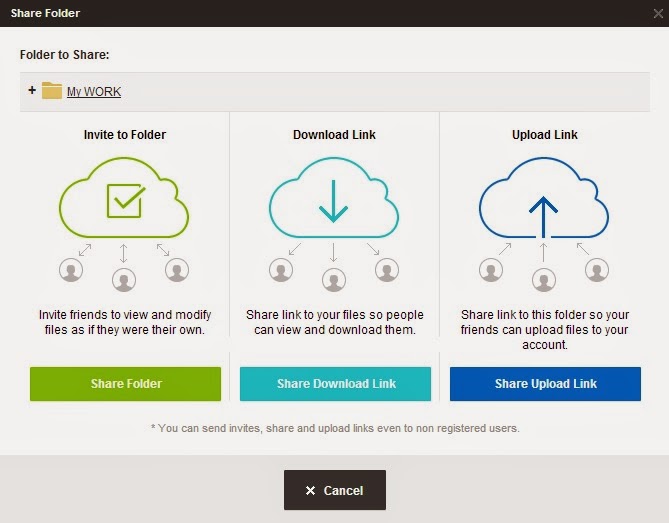
With pCloud you can easily share your files and folders with your family, friends and colleagues. To share a file, you can generate a link, which you can submit to anyone and provide them with access to your files for download or upload purposes. If you decide to share a folder, you can provide access to it using the sharing system of pCloud, which sends an automatic email to your friend and provides them with a link to your folder. Upon sharing you can set access rights to your recipients – whether they can view, modify, delete, etc. your files and folders. 


As a third option, you can share a link to a folder so other users can upload files to your account. Using the upload link you can easily receive any types of files online.
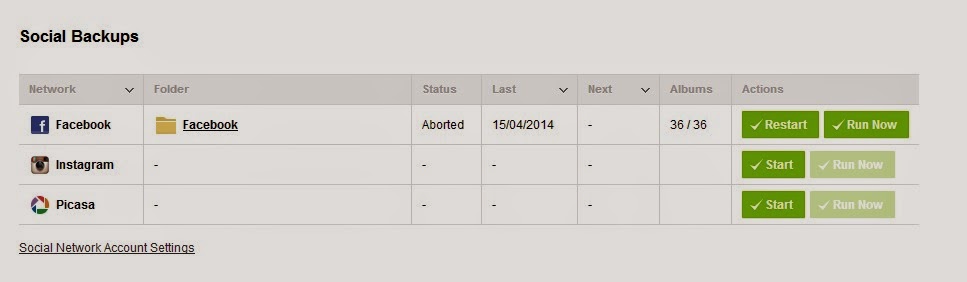
A nice service that pCloud provides is backing up your digital data from social platforms like Facebook, Instagram and Picasa.
Since you can access your pCloud account anywhere, on any device, you can easily view your files directly on the pCloud online storage platform. You can even play video and audio files in real time. 


Copy is an advanced cloud storage platform that helps you store, synchronize and protect the important documents and files residing on your computer or mobile device. It provides a well managed and secure cloud environment that encrypts and protects your vulnerable data.
When you register an account, you automatically get 15GB storage space for free. The platform also offers a referral scheme, through which you can earn 5 GB bonus free space.
If you decide to install the Copy desktop application, it automatically creates a folder on your computer, where you can store your valuable files and let them automatically upload and backup to cloud.
With Copy, file sharing is quite simple. You can do that through a customized link, provided through the platform. Simply right-click on the Copy desktop folder on your computer or on a particular file in the folder. A menu appears, offering the following file sharing options: 


You can create a link to your files and share the link with other users and friends. This way they can easily view and download your files, even if they do not have a Copy account.
The business users can also benefit from the service through the Update Billing Settings section on the Copy website, where they can upgrade to a paid version of the service. The plans offered start from $10 a month for 250GB and go up.
Users can easily set up public or private partitions in their cloud storage space and share their data with their colleagues, in just one click. There are two ways of sharing files – Public or Private.
When you open a link to another Copy account, sent to you from another user, a button appears, saying Copy to Save, next to the Download button. Using this, you can save the file directly to your Copy account – neat and simple. No need to download and upload it, all is done simultaneously.
The platform works on Windows, Linux and Mac. On mobile, Copy works with iPhone, iPad, and Android.

pCloud free cloud storage for your files


pcloud cloud storage


pCloud is a relatively new cloud storage service, which is developing in very impressive speeds. With up to 20GB free storage space, this online cloud platform will be very helpful for your everyday needs. Businesses can benefit from it by upgrading to 100GB, 300GB or 1TB online storage space for any types of documents and files. pCloud is a secure space where you can store all of your audios, photos, videos, etc. and any other valuable digital belongings.

This online storage platform provides you with the opportunity to share and store your files without bothering about any speed or size issues. By storing all your data in the online storage space, you can be sure that it is available on any of your devices, wherever you go, anytime. You can share your photos and videos with anyone, and even play them online without any buffering. The cloud service is available for web and any desktop and mobile devices.

Even if your device gets stolen or lost, your data is safe. You can remotely unlink the device from the service just by changing your account password. This way your personal information will still be safe and protected on the pCloud servers.

Uploading your files from your PC or mobile device to your pCloud account takes less time than you expect, regardless of the file size. If you download the pCloud application for desktop or mobile, it provides you with a virtual drive, where you can store and automatically sync your files with your online account. Synchronization goes really fast and easy, both ways – from your device to your online space and vice versa.

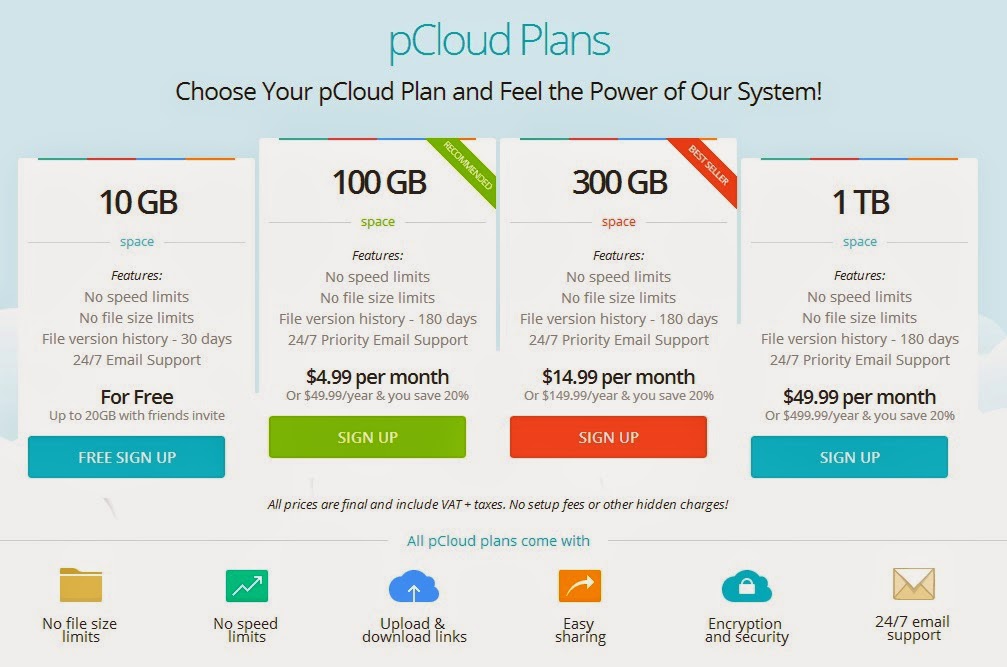
With this online storage service, space is no longer an issue. You can store as many files as you wish, and keep in one protected space your countless pictures, videos and audios. With the initial free space amounting up to 20 GB, you have more than enough space for personal needs. If, however, this is not enough for you, you can always upgrade to a paid version, using one of the billing plans pCloud offers:

online cloud storage


Actually, upon registration you get 10 GB of free storage space, but pCloud gives you the opportunity to earn as much as 10 GB bonus free storage by performing some of the following actions: invite friends (+ 1 GB per registration); start using the service (up to 3 GB); subscribe to newsletter (+500 MB); share a link on Facebook (+ 500 MB); backup Instagram or Picassa pictures (+500 MB).

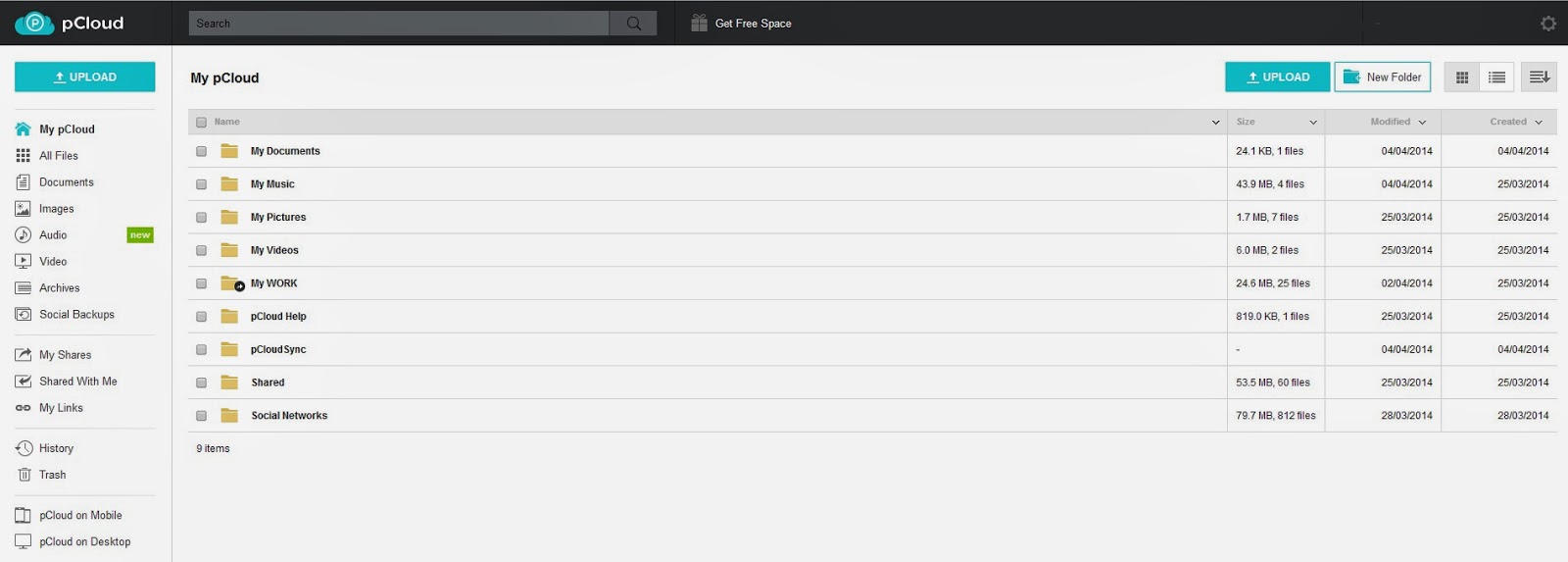
When you sign up for a pCloud account, your online workspace looks approximately as follows:


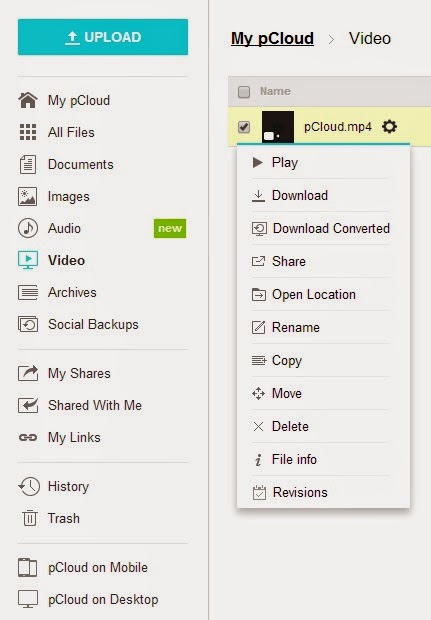
As you see, it is really intuitive and neat, and you can easily navigate through the menus. No special skills required. When you hover the mouse to the right of one of your files or folders, a gear-wheel appears, providing you with other available options.

With pCloud you can easily share your files and folders with your family, friends and colleagues. Simply right-click on the gear-wheel next to your file or folder on the online platform. If you choose to share a file, you can generate a link, which you can submit to anyone and provide them with access to your files for download or upload purposes. If you decide to share a folder, you can provide access to it using the sharing system of pCloud, which sends an automatic email to your friend and provides them with a link to your folder. Upon sharing you can set access rights to your recipients – whether they can view, modify, delete, etc. your files and folders. 


As a third option, you can share a link to a folder so other users can upload files to your account. Using the upload link you can easily receive any types of files online. With pCloud uploading large files is no longer an issue. You can store files as large as your storage space allows. This may include even HD videos and music albums.

A really cool service that pCloud provides is the feature for backing up your digital data from social platforms like Facebook, Instagram and Picasa. Using this you can backup all the pictures that you have shared on Facebook, for example. So, even if you lose your Facebook account for some reason, you will still have your valuable pictures in your possession.


Since you can access your pCloud account anywhere, on any device, you can easily play your files directly from the pCloud online storage platform. You can play video and audio files in real time. 


Shortly, pCloud is a great fast developing service, which gives you more than enough free space, amazing upload and download speeds, very nice sharing and collaboration options, and works equally well on all mobile and desktop platforms. So, enjoy!

Mega - The Privacy Company


Who wants 50GB of free storage space? If you do, then maybe Mega is the place for you. It is a relatively new online cloud storage service which is still in the process of development. It lacks some of the features of the older and more commonly used file storage platforms, but it has been growing in a rather fast and promising way.
Upon opening the Mega website it automatically provides you with the opportunity to upload files, despite the fact that you are not registered yet.

data storage


It offers a cloud-based file storage space for your documents and files, which can be accessed through any device connected to the internet. Technically, you can use the service through any web browser, although Mega recommends using Chrome. Some reviewers using other web browsers report a certain problem – freezing of the screen during upload or getting a message of estimated upload time of infinity, which sounds quite amusing. However, my personal experience does not support that theory. I have never had any trouble uploading or downloading files using the Mega.

The Mega site looks like a rally team website, with the sense of speed added to the Mega logo. This is also visible in the icons of the billing plans. Seems the Mega developers are into racing. Figuratively and literally speaking.

The platform is very intuitive and easy to use. Simple looking, it does not encumber you with information and options. This way even the least experienced cloud users can benefit from the online cloud storage system, without needing to read manuals and instructions. The basic options it provides are uploading Files and Folders from your computer; adding contacts – if you add a contact, it requests their email and sends them an invitation to join Mega. This way you can easily invite your friends and colleagues to the online platform and exchange files with them. The system provides an embedded inbox folder, where you can get messages from the other users that you collaborate and share files with. Also, you can control your file transfer settings. You can increase or decrease the number of simultaneous downloads or uploads. You can also specify an upload limit so the transfer does not burden your internet connection.

What is interesting about the platform is that it allows you to set skipping of identical files from uploading. This way it prevents you from uploading one and the same file over and over again. This is quite common if you have large galleries of pictures or large collections of music. By using this option you only upload one file at a time, which helps you use reasonably your online storage space.

Once registered to the Mega, you can start uploading files or folders, as well as simultaneously download data from the web platform. Unlike the more commonly used cloud storage services, such as Google Drive or BitCasa, Mega does not integrate with your file system. You can only access your stored data through a web browser.

Once you have uploaded a file, you can right-click on it and make use of the additional features the online file storage platform provides.

online data storage

If you decide to share a file or folder, Mega allows you to share your data with other users who are registered at the Mega website. If you plan to share your documents with people who are not registered, they will get an email, inviting them to the Mega service. Upon sharing, you can set authorization rights to the users – whether you will provide them with read only or full access to the files and folders you share. Since the files you upload to the platform become encrypted in the process of uploading, the users you provide with a link to your files will hardly be able to do anything it, without being provided with your password. An option to solve this issue is to include a decryption code that is shared along with the URL to the file. Using this, the other user can freely download and use the files they are provided access to.


As previously mentioned, the policy of Mega is not to store two identical copies of the same file on their servers. This is a nice feature because this way it decreases the content stored online and reduces the time needed for upload. However, Mega claims they have no access to your storage. In this case, how do they manage to avoid duplication if they are not aware of the contents of a particular file?

Unlike similar cloud services, Mega supports unlimited size of the files you upload. This way it ensures large file transfer at reasonable upload and download speeds.

Mega claims they do not store passwords on their servers. Actually, users report cases in which they lost their passwords and did not get any help for recovering them from the Mega support. If this happens to you, your files are gone for good and are no longer in your possession. Mega tend to wash their hands in their License Agreement where they state that they do not take any responsibility for your files and you are responsible to keep copies of them elsewhere, outside the Mega servers, for safety reasons, which makes the service quite pointless.

In terms of the plans offered, Mega has the following options for you:

online cloud back up


These prices make Mega the cheapest cloud storage service on the market.

Google Drive keeps all of your data in one place


Formerly Google Docs, now Google Drive provides additional cloud storage functionalities, combined with its online office features. It also raises the bar for its competitors by providing a wonderful collaboration and file sharing services. No wonder it is a preferred choice by a large share of the cloud users.

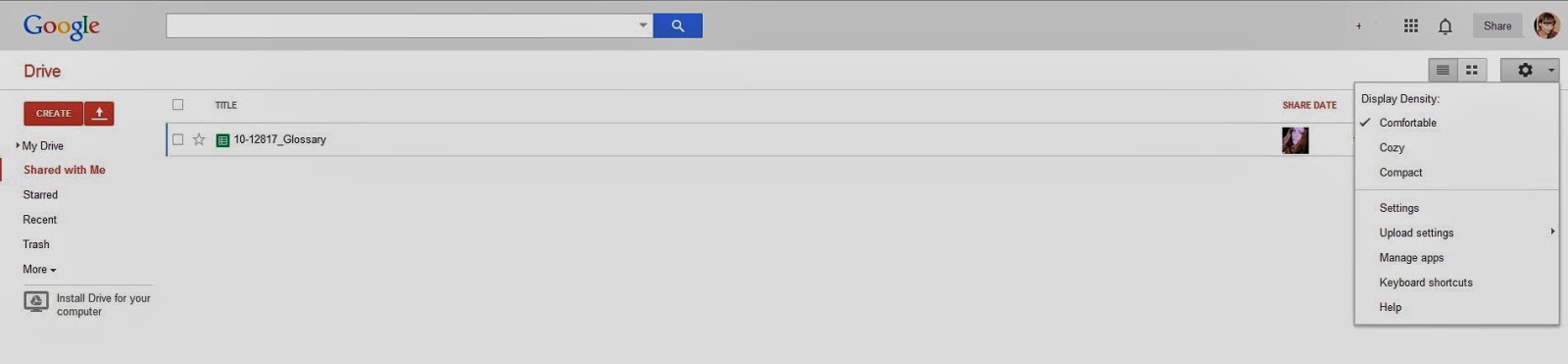
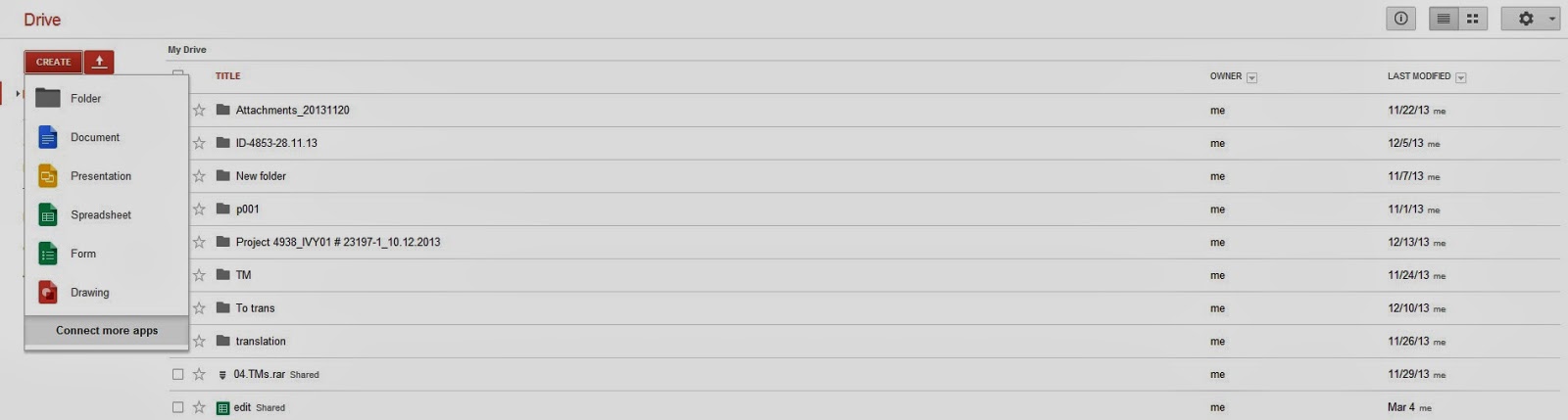
The only thing you need to do in order to use Google's multiple cloud and office services, is to set up a Google account. After registration for the online drive, you get the following workspace:

free file storage

Initially started as a free online office package, an alternative to Microsoft Office or Open Office, Google Drive has now become a versatile service, where you can create, edit, share, synchronize files and folders, as well as collaborate with other Google users and work simultaneously on online documents. File sharing and data storage have now become a piece of cake with Google Drive.

Google Docs (presently Drive) now works more like Dropbox or BitCasa, or any other file-syncing and backup service, while still keeping its core office applications. Practically, it is the closest competitor of OneDrive (Microsoft's alternative), which also offers online document creation and editing tools. The basic difference is probably in terms of file formats. When you upload a file from your desktop application, Google Drive converts it to its own file format, but on export, you can return the file's former format. You can also create files online, using the web interface, work on the files online and export the finished documents into standard formats like .doc(x), .xls(x), .pdf, etc. If, however, upon upload you decide to keep your original file format, this may limit your file editing capabilities. 

cloud service

You can also create forms (which is not a feature, offered by OneDrive), export them and easily collaborate with other users. This, as well as the other office collaboration functionalities, is a great option for colleagues and teams, working on common projects, because this decreases the need for emailing and commenting project changes, since all the job is being done simultaneously, online, using one application.


It is not at all hard to comprehend the way all the collaboration features work. You can easily create text documents, spreadsheets, presentations, forms and drawings. Google hosts the files you work on and create, so you need not worry about your documents when you sign out. When you return, your files are still there, waiting for you. Users can also create folders and sort their documents on the online cloud storage platform. If you do not remember where your documents were stored, Google provides a wonderful search feature, where you can easily locate your files and documents.

In order to use the synchronization options of Google Drive, you need to download and install the Drive desktop application for Windows or Mac.

 
When installed, Drive appears as a folder in your Windows explorer menu and as an icon in your task bar. The Google Drive icon shows you if the files you add to the folder are in a process of synchronization and presents you with the state of their synchronization. This happens very fast and does not burden your internet connection. It is all done on the background and you may not even notice it happening. You must, however, keep in mind that if you delete a file from your local drive, it will also be deleted from Google Drive, because synchronization works both ways, as it does in all other synchronization services.
Some synch and backup platforms provide an option for automatic photo and video uploading to the cloud. Google Drive, however does not provide such an option, but places these capabilities within the Google+. However, if you still need to upload a video or a picture you make with your phone, you can manually do it using your device. This way Drive will preserve its original resolution. Otherwise, uploaded to Google+, it loses some of its quality because of Google's compression features.

Google Drive provides its own, native media player, Play Music, where you can stream your media files and view them online.

What makes Google Drive stand apart from other online cloud storage services are definitely its collaboration functionalities. It is great for team work and multiple-participant projects. This way you can collaborate with your colleagues and other users working on online documents. You can also easily share files through creating a customized link. Upon generating the link, you can specify sharing options and user capabilities. For example, you can set various access rights to other users.

The free version of Google Drive gives you 5GB of space, which is actually a good deal compared to other data storage services. You can spare your quota space if you use Google's genuine format for your files created online. However, if 5GB isn't enough for your needs, you can use the paid space options. Currently Google has decreased significantly the prices of the paid plans, becoming one of the most preferred competitors on the market.


Google Drive is supported on any device using Windows, Linux or iOS. Drive provides mobile applications for any mobile device with Android, as well as iPhone, iPad, Windows phone or Blackberry.

Just Cloud: Protecting Your Files... For a Price

justcloud online cloud storage

My first impression of the platform was “This is the ugliest website of a cloud service I've ever seen”. And it doesn't get any better when you familiarize with the system.

Probably the most irritating part is that the mailing system of JustCloud starts spamming your email literally upon every move you make within the platform. Also, since it does not actually provide a free version, it constantly reminds you that you need to upgrade to a paid version by pop-ups and adds appearing on your task bar after you install the application. It only provides you with a 14-day trial version which does not support all functionalities of the platform. Even if you decide that JustCloud isn’t your cup of tea and uninstall the application, you will continue getting emails begging you to come back.


Upon registration the system gives you 20% off of your plan price. Actually, the longer you wait during your free trial, the bigger the discount offered to sign up for paid account. A little desperate, don't you think?

After you register an account on the JustCloud website, the desktop application automatically starts downloading on your device. It is quite easy to install and it performs automatic backup to cloud upon installation.
data back up


This is the panel that appears after performing the automatic backup. If you are using the trial version, it warns you that “Some files are not protected”. So, JustCloud, what other job do you have other than protecting my files?

The good part is that you can assign scheduled and automated backups and not bother manually performing them later. The platform provides a Drag & Drop functionality, which makes it easy for you to place the files you need to backup in the specific folder of the cloud system. By selecting “Volume Shadow Copy”, even files that are currently in use when the backup starts will be transferred to your cloud storage. You can also set parameters for the amount of system resources to use and specify not performing backups unless your computer is idle.

Some of the benefits of the file sharing system are that it is 100% compatible with Windows 7, 8, 2000, XP and Vista, Mac OSX and Linux. It offers applications for iPhone, iPad, Android and Blackberry. With the online cloud storage system you can share files with friends and other users. You can invite them by email, Facebook, Twitter or provide them with a custom link.

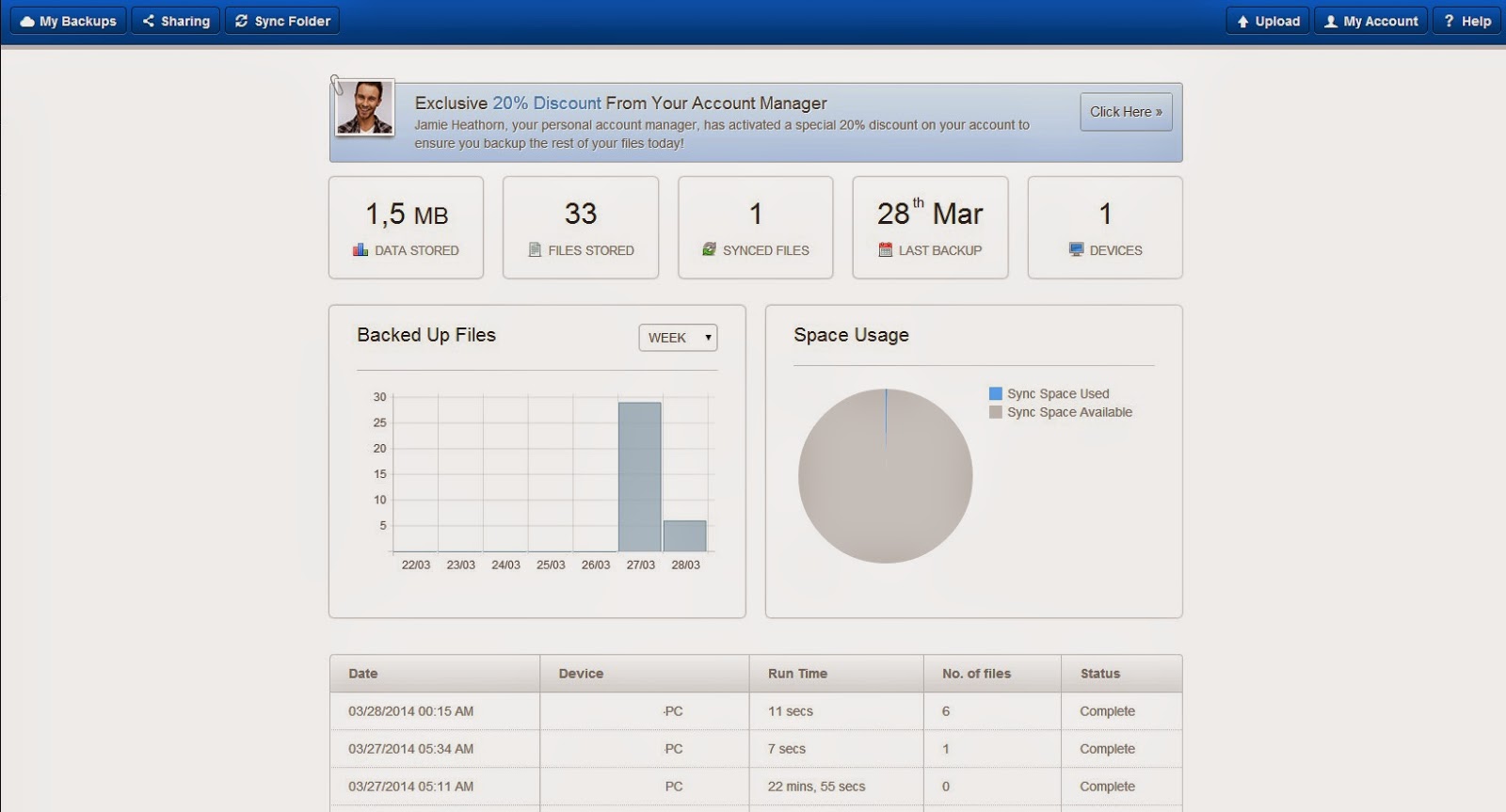
The platform provides you with an online control panel with the following view.

online cloud storage

Using the Control Panel functionality you can easily trace the transition of your files to and from the platform, the space you are using, the space remaining, the time remaining for your payment plan, and many others. The control panel allows you to access all of your backed up and synced files from any device with an internet connection, anywhere.

Like any other cloud, JustCloud completely eliminates the need for any physical storage devices. It allows you to automatically sync files across various devices – whether mobile or desktop ones. Practically, you are the one to decide which files you want to sync or whether you want to sync them at all.

The file backup system offers 24/7 Technical Support and online help, which could be quite necessary because the service is not too user friendly and intuitive.

JustCloud supports unlimited file versioning, which is useful if you need a previous version of your files and documents, which is no longer available on your desktop or mobile system.

The user plans offered allow you to choose between three different account levels. This way you can find a package that meets your needs for backing up. The plans offered are, as follows:


The free trial account gives you 15MB of storage space, which is not much, but you can store a few files, at least to test the service.


One of the disadvantages of the online cloud backup system is that you can’t restore an entire folder stored to your online account. You have to open the folder and download individual files, one by one. It could take some time to restore copies of your files in case of a fail in your system. The download and upload speeds are also not particularly high, so it takes some time to perform these operations.

Shortly, for personal use, JustCloud works quite well for backing up and syncing files now and then. However, for professional use, we would recommend other data backup services.

Store, Protect and Share Amazing Things with Copy

copy cloud storage


Copy is an advanced cloud storage platform that helps you store, synchronize and protect the important documents and files residing on your computer or mobile device. It provides a well managed and secure cloud environment that encrypts and protects your vulnerable data. Regardless of the fact that it is a relatively new service, Copy has managed to achieve levels of service providing, equal or surpassing some of the oldest and most commonly used online cloud storage services.

The web platform is quite intuitive and neat looking. No extra menus, no additional annoying services. The page is not crowded with ads and information and it is very easy to navigate.

At sign up it provides you with an option to copy your files from your current cloud provider to the Copy service. This is a rather usable feature if you are not happy with your current file sharing provider and you are willing to change it. This option saves you the time to download and upload again your valuable files and folders from another cloud to the Copy. It automatically connects to the cloud platform you have been using and copies your files, stored at the other cloud, after requiring your authorization.

online cloud storage

Of course, you can skip this step and use Copy as a supplementary data backup service.
When you register an account, you automatically get 15GB storage space for free. The platform also offers a nice referral scheme, through which both the referrer and the referred earn 5 GB bonus free space. What you need to do to get the bonus is to refer to the Copy website through a customized link, posted on your web page or blog.

On your web account you can add or remove third party applications, such as Mover, which is the application that moves your files from your other cloud storage service to the Copy cloud.

The Copy desktop application does not download automatically upon registration, so you can choose whether to download and install it or to skip this step and manually upload files to the cloud. However, if you decide to install the desktop application, it largely eases your work. It automatically creates a folder on your computer, where you can store your valuable files and let them upload and backup to the cloud. However, the upload and synchronization speeds are not particularly high. The service tends to upload smaller files with precedence over the larger ones. This way it looks as if the larger files stay pending for a particular period. You have definitely seen faster cloud upload services. The nice thing is that the files you upload to the web platform from other devices also copy to your desktop folder automatically. This way you can keep all your information in one place and not lose any important files and documents.


With Copy, file sharing is quite simple. You can do that through a customized link, provided through the platform. Simply right-click on the Copy desktop folder on your computer or on a particular file in the folder. A menu appears, offering the following file sharing options:

You can create a link to your files and share the link with other users and friends. This way they can easily view and download your files, even if they do not have a Copy account.


The business users can also benefit from the service, because of the great file sharing features it provides, since in offices and large organizations there is a consistent need of data transition. In the Update Billing Settings section on the Copy website you can upgrade to a paid version of the service. The plans offered start from $10 a month for 250GB and go up.

Users can easily set up public or private partitions in their cloud storage space and share their data with their colleagues, in just one click. There are two ways of sharing files – Public or Private. Public ones can be viewed by anyone, while Private ones require customized link that you have to send to other users in order to allow them to view and download your files.

When you open a link to another Copy account, sent to you from another user, a button appears, saying Copy to Save, next to the Download button. Using this, you can save the file directly to your Copy account – neat and simple. No need to download and upload it, all is done simultaneously.

With Copy, users have the opportunity to synchronize their stored data with all the devices they use in their homes or offices. When you make changes to a file in your Copy folder on your computer, as long as you have an internet connection, the file synchronizes with the one in your web account. No further actions required.

The platform works equally well on Windows, Linux and Mac. In terms of the mobile applications, the app and basic storage amount is free, and Copy works with iPhone, iPad, and Android. As for the Android app, it works with 2.3.3 version or higher.

With Copy, users can always access their data from anywhere in the world over the Internet. Copy lets you access your cloud storage space form your smart phone, anytime, anywhere.

Bitcasa - keeping your files safe


What I like most about the cloud platforms is that they all offer a similar service, but with a twist. The approach of Bitcasa is particularly interesting.
Shortly, this is your external hard drive in the cloud. This file storage system allows you to drag and drop files and folders just like any external hard drive. The documents you've placed on this virtual drive won't take space on your computer and will be accessible from any other devices you use. This magic happens when you install a desktop application that starts downloading automatically at sign up.
When I started installing the app, I was puzzled by the multiple instructions that come with it. The process looked quite clumsy at first, but later everything turned quite nicely. The system installs a virtual drive on your desktop computer. This virtual drive effortlessly backups and mirrors your files and you can access them from all your computers and mobile devices, anytime.


Via the virtual drive you can access all your files, anywhere. You can also listen to your music, watch videos, view photos and documents. The platform allows you to share files and folders instantly with other users. It provides secure cloud storage by encrypting your files before they are even uploaded. This way you can safely backup all your digital belongings and access them via Windows, Mac and Linux, as well as any mobile device. You can access your files even offline.
Unlike other similar file sharing services, Bitcasa allows you to view or stream any type of file without additional software required.
The Bitcasa virtual drive works and looks just like any standard hard drive, except it does not run out of space! (This is in case you've ordered a paid version). All you need to do is simply drag and drop files to your Bitcasa drive. Practically, Bitcasa helps you save valuable space on your non-virtual drives, which is especially helpful for mobiles. 

The Bitcasa platform provides effortless auto-backup. All you need to do is simply right-click on a file or folder on your computer and select Mirror to perform an automatic backup to Bitcasa.


The cloud storage system automatically backups your files even on mobile. You just need to download and install the Bitcasa application for iPad, iPhone or Android.
You can also download a plug-in for Chrome. This way you can save files you find on the web directly to your Bitcasa drive. Plug-ins for other browsers are still in a process of development.


Bitcasa offers the following user plans:

Free – Up to 20 GB storage space
Premium – 1 TB storage space – 10$/month – Up to 5 devices
Pro – 5 TB storage space – 49$/month – Up to 5 devices
Infinite – Unlimited storage space – 99$/month – Up to 5 devices

SugarSync for your files


The SugarSync file sharing and synchronization system gets a lot of positive feedback from users and reviewers. It is developed mostly for business needs and its interface is very user friendly. SugarSync offers excellent cloud backup for your files and data. It provides a desktop client, using which you can intuitively backup and synchronize your files and folders.

It does not offer a free version, although, if you are interested, you can test its trial version for 30 days and then, choose a plan. However, upon registration for the free trial the system requires your credit card data, so one way or another you become related to the service from the mere beginning.

The plans this online storage system offers are, as follows:

- 60GB storage space – 1 user - $7.49/month

- 100GB – 1 user - $9.99/month
- 250GB – 1 user - $24.99/month
- 1000GB – 1-3 users - $55/month
- Custom – 3+ users – plans on request


SugarSync provides an online backup service using which you can restore all of your shared data and be sure that you never lose any previous versions of your files. The recovery function ensures an excellent backup for your files. The system provides highly reliable data security.

At a few clicks you can share one file or an entire folder, containing your important documents. You can collaborate with your friends and other users by sharing public links. This provides an easy way of sharing information across business teams. You can also add various permissions for your files, this way ensuring they will only go to the right hands.

The system automatically synchronizes your files across various computers and devices. SugarSync has mobile applications for iPad, iPhone, iPod touch, & Android.

Why Box?


Box is a neatly designed online storage system, providing fast synchronization and upload of your files, documents, pictures, etc. It is designed mostly for business purposes, since it offers options for collaboration and messaging between various users. The free option, however, has certain file size limit, which makes it fall against other file sharing services. Box is exclusively an online cloud storage system, providing an advanced web service. Its streamlined look allows even the least experienced users to use it with ease.
The system actually looks quite familiar. Does the Box task bar remind you of something?


Facebook, indeed. In reverse.


On sign up it provides four user plans.

- Personal (Free) – 10GB storage space / 250 MB file size limit – 1 user

- Starter (4 EUR/user/month) – 100GB storage space / 2 GB file size limit – 1 – 10 users

- Business (12 EUR/user/month) – 1000GB storage space / 5 GB file size limit – min. 3 users

- Enterprise (30 EUR/user/month) – unlimited storage space / 5GB file size limit – customized number of users

The service is a bit pricey but if you are a business person looking for an online storage system, the price/space ratio of the service is worth it. However, there are multiple cloud systems that offer a much cheaper service for online backup.
Box, on the other hand, is very advanced in terms of features. It provides multiple options, that are not offered by other cloud applications. When you upload your files, you can easily share them with other users and add permissions – whether they can view, edit, delete, etc. your files. Box also allows you to add description when uploading files. On your desktop device you can set Box to automatically sync all the files you place in the Box folder and subfolders. Also, you can manually turn off the synchronization.


When you first open your Box account, the following screen appears.


The upload section is easily and intuitively used for uploading files from your computer. The New section, however, is the more interesting part. This cloud storage system allows you to create new folders, bookmarks and documents. For creating MS office documents you need to download and install the Box Edit application, which allows you to easily create and edit documents.
The online system also allows you to create collaborations with other users, that is why it is particularly suitable for business purposes. 
Shortly, Box is good for business purposes, especially when online collaboration and messaging is needed, and its interface is great, but for free, personal use, we would recommend other file sharing systems.
Box also provides mobile apps for Android, iPhone and iPad, and Windows Phone.